 SentnelOps
Enforcement guides
Four tasks: flip an environment to enforce without breaking real traffic, put a human in front of dangerous tools, decide approvals from the dashboard, and wire alerts to Slack or email.
Flip an environment from observe to enforce, safely
Never enforce a rule that hasn't run in observe first. Observe mode uses the identical decision function, so its would-block rows are a zero-risk preview of exactly what enforce will block. The runbook:
| Step | You are done when |
|---|---|
| 1. Run in observe. Watch the live feed's red would-block rows. | Would-block counts are stable and every row is a call you genuinely want blocked. |
| 2. Fix the policy, not the traffic. A legitimate call showing as would-block means the rule is wrong — edit the YAML on the Policy page (validated on save, live within seconds). | Zero surprising would-block rows for several days of normal traffic. |
3. Flip staging: staging: enforce. One line, revertable in seconds. | A week of staging traffic with no false blocks. |
4. Flip production: production: enforce — and set fail_mode: {production: closed} in the same change if security outranks availability there. | Production enforces with no first-day surprises — observe already found them all. |
enforcement:
  staging: enforce            # step 3 — block here first
  # production: enforce       # step 4 — after a clean week in staging
  dev: observe                # advisory in dev for developer speed
Put a human in the loop for dangerous tools
Two ways to hold a call for approval — use both:
enforcement:
  production: enforce
  rules:
    drop_database: require_approval   # always held, in every environment
  approval:
    defaults: {window_seconds: 60, blast_radius_threshold: 0.7}
    # any enforced call whose declared blast_radius >= 0.7 is also held
The explicit rule is for tools you can name in advance; the threshold catches high-blast-radius tools you scored in policy but forgot to list. What the agent experiences: its request simply takes longer — held up to the window (default 60 s) — then either completes normally (approved) or returns 403 blocked_by_sentnelops with the decision in the reason (denied or timed out). Agents need no SDK, only a timeout longer than the approval window.
Decide approvals from the dashboard
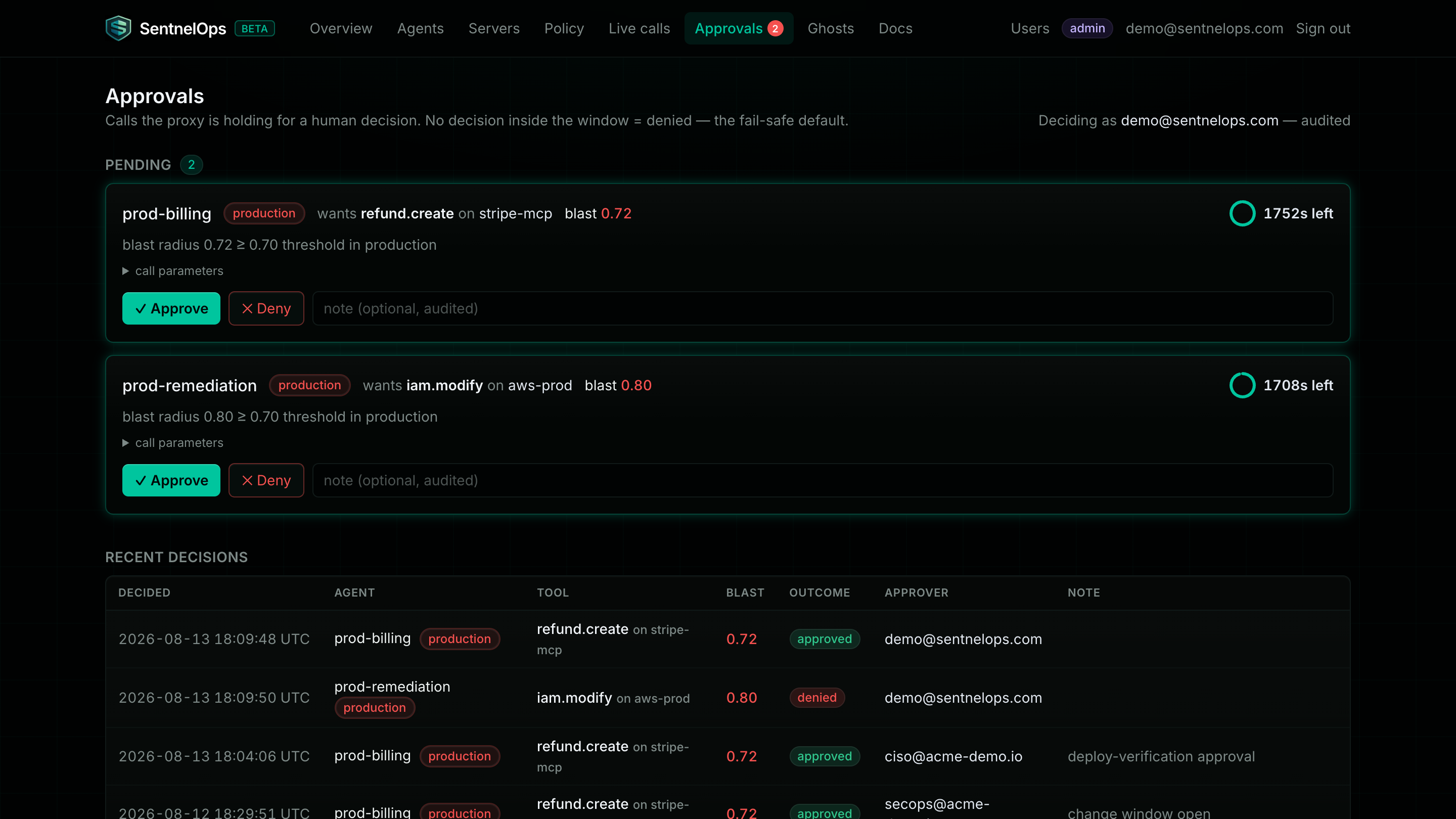
Deciding requires the security role or higher (see layer 5); viewers and developers can watch the queue but not decide. Dashboard users always decide as themselves — the approver recorded is your account, and it cannot be spoofed. Automation using an org API key must name its approver explicitly. From the command line:
curl -s https://<your-api-host>/approvals/<approval-id>/approve \
  -H "Authorization: Bearer <session-or-api-key>" \
  -H "content-type: application/json" \
  -d '{"note": "release window — verified with the on-call"}'

# deny is the same shape at /approvals/<approval-id>/deny
# a second decision on the same approval returns 409 already decided
Wire alerts to Slack and email
Out of the box, alert events are logged locally and nothing leaves your infrastructure — zero egress until you configure a channel. Set either or both:
# Slack — one incoming-webhook URL
SNOPS_SLACK_WEBHOOK_URL=https://hooks.slack.com/services/<your-webhook-path>

# Email — SMTP with STARTTLS
SNOPS_SMTP_HOST=<smtp-host>          SNOPS_SMTP_PORT=587
SNOPS_SMTP_USER=<user>               SNOPS_SMTP_PASSWORD=<password>
SNOPS_ALERT_EMAIL_TO=<security-team@your-domain>
SNOPS_ALERT_EMAIL_FROM=<sentnelops-alerts@your-domain>
Approval alerts can route to a per-environment Slack channel — set channel in the environment's approval override (for example production: {window_seconds: 30, channel: "#prod-approvals"}) so production holds page the right room.